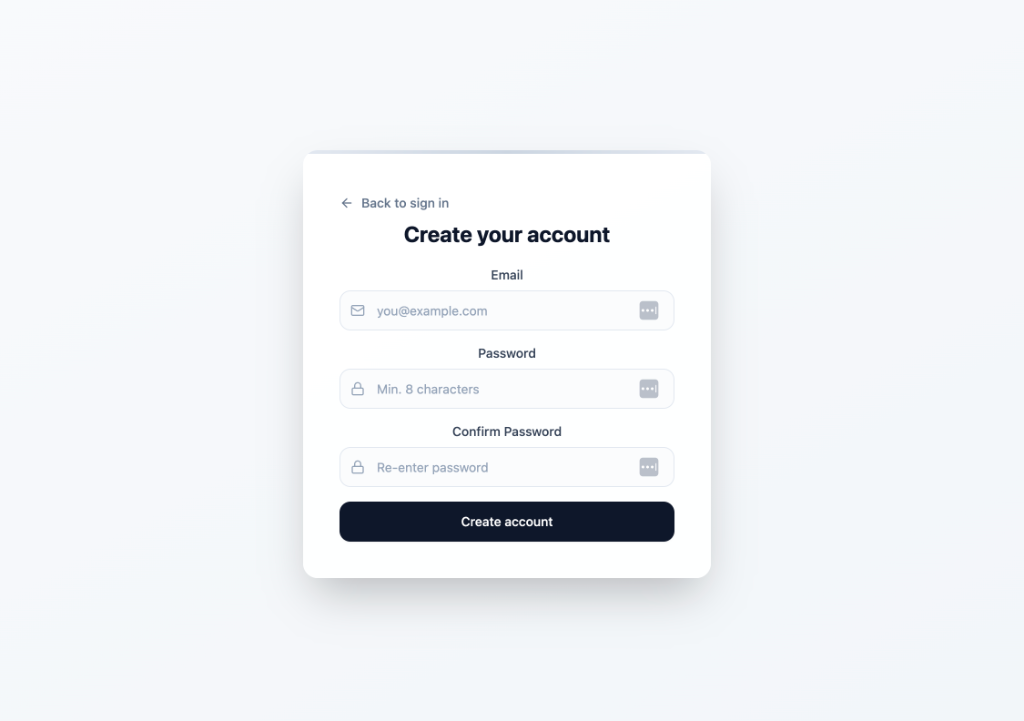
Create your tenant account
Start by signing up with the email you used on your lease.
Tip: If you're on mobile, pinch to zoom.
- Tap "Sign Up"
- Enter your email
- Create a password (minimum 8 characters)
- Confirm password
- Tap "Create account"
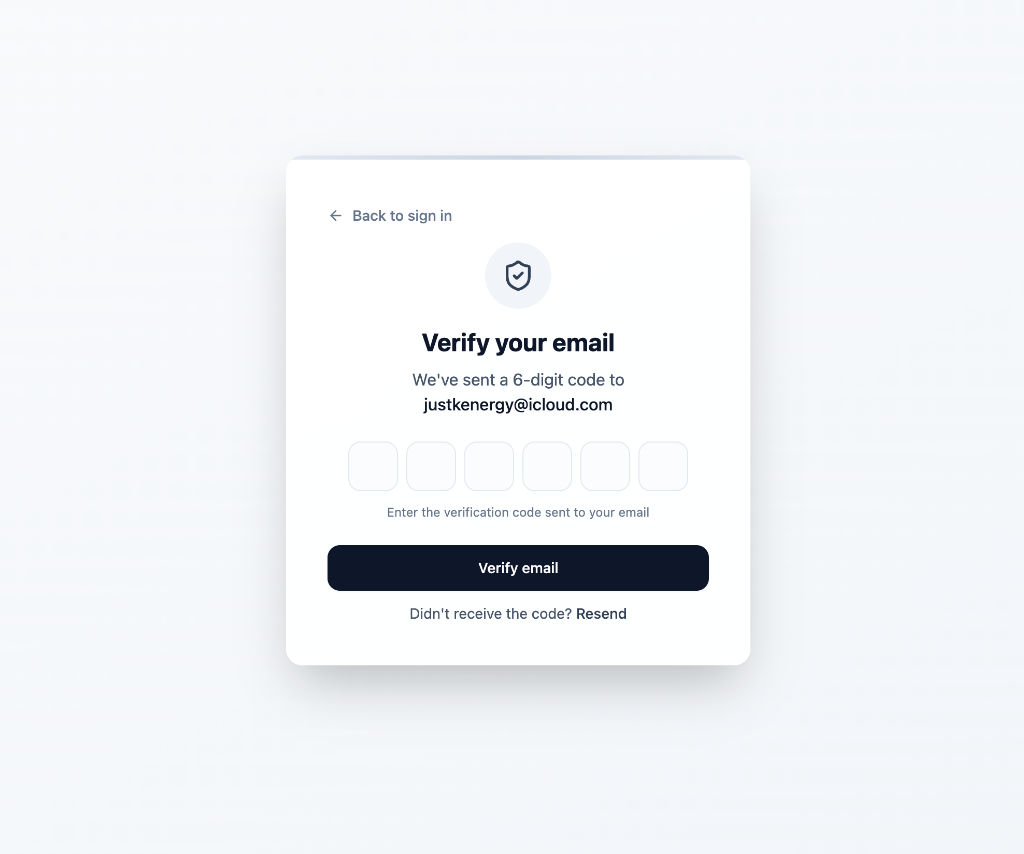
Verify your email address
We'll send a 6-digit verification code to your email.
Tip: If you're on mobile, pinch to zoom.
- Open your email inbox
- Copy the 6-digit code
- Enter the code in the verification screen
- Tap "Verify email"
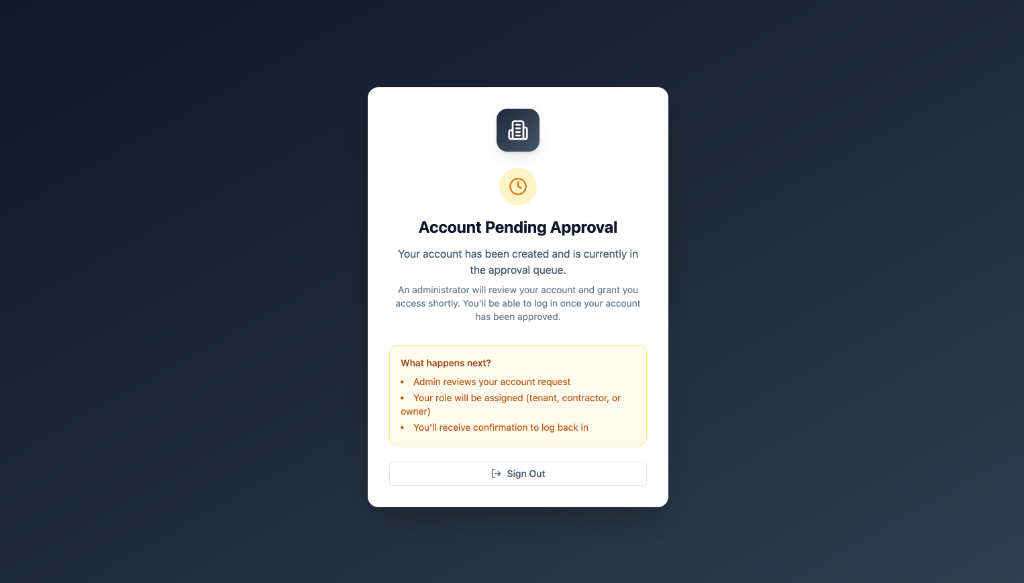
Wait for approval
For security, property management must approve your account before you can access your portal.
Tip: If you're on mobile, pinch to zoom.
- Your request goes into an approval queue
- An admin assigns your tenant role + unit
- You'll receive confirmation when approved
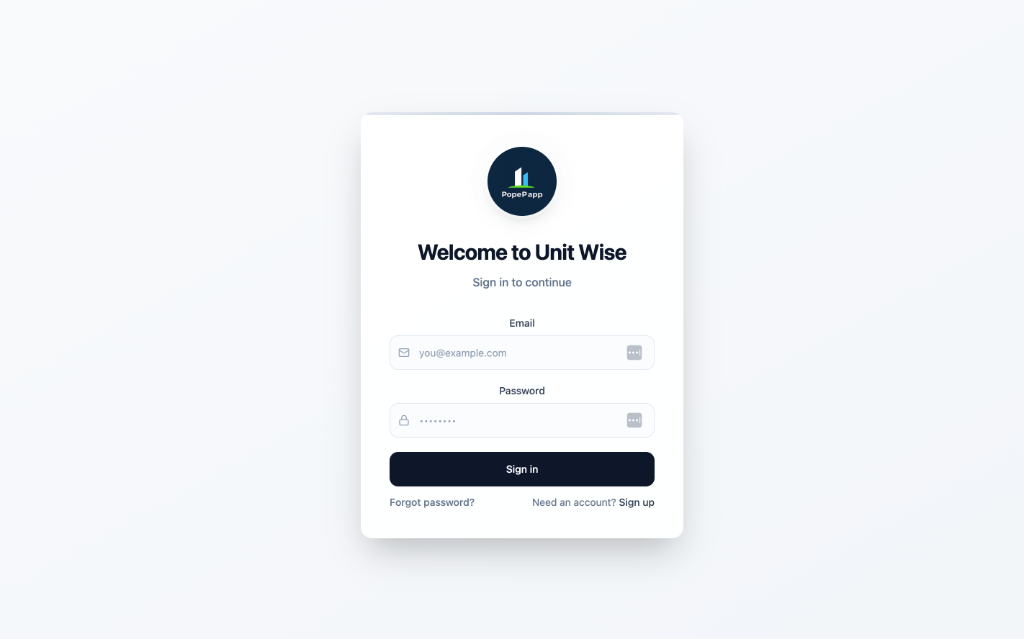
Sign in to your portal
Once approved, sign in using your email and password.
Tip: If you're on mobile, pinch to zoom.
- Enter your email
- Enter your password
- Tap "Sign in"
Explore your dashboard
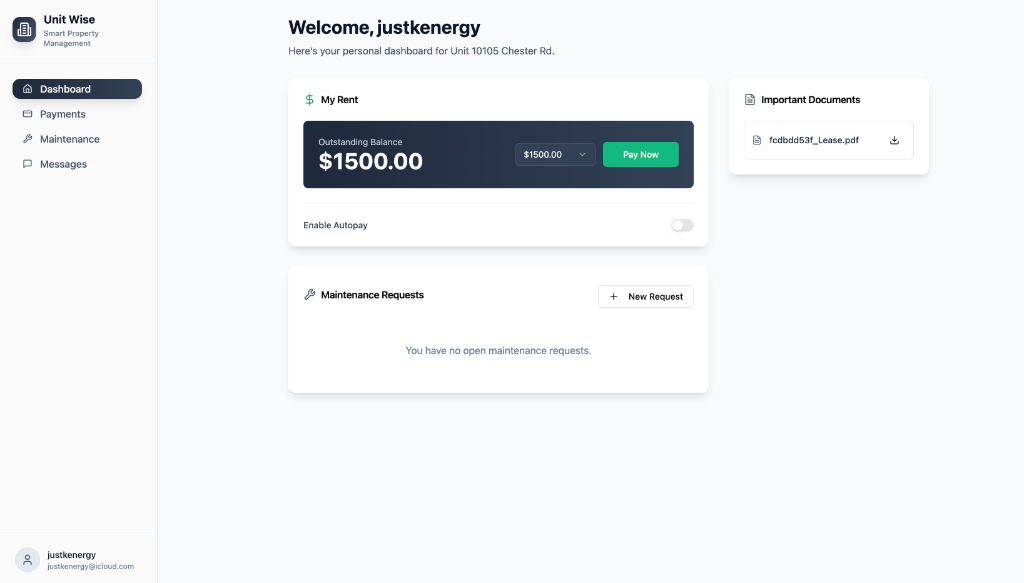
Your dashboard shows rent, documents, and maintenance in one place.
Tip: If you're on mobile, pinch to zoom.
- View your outstanding balance
- Enable autopay (optional)
- Download important documents (lease, notices, etc.)
- Track maintenance requests
Make a rent payment
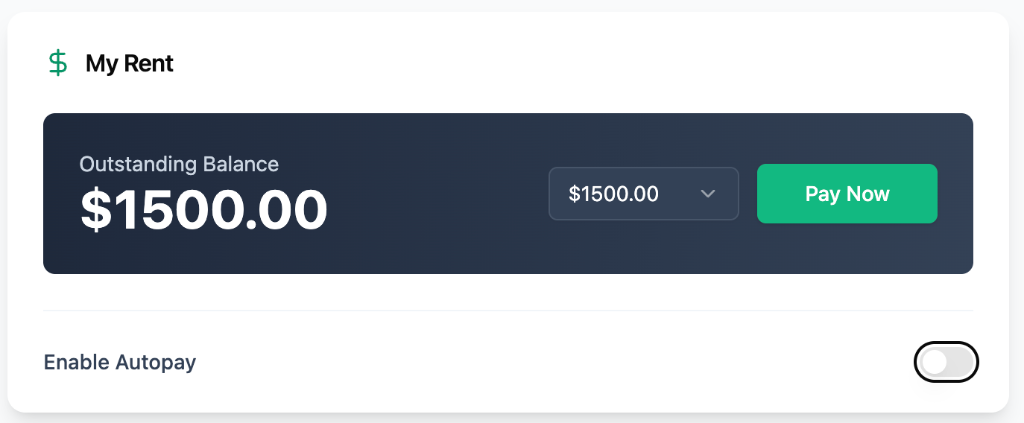
Pay securely through the portal in seconds.
Tip: If you're on mobile, pinch to zoom.
- Review your outstanding balance
- Select payment amount (if options are available)
- Tap "Pay Now"
- Complete checkout
Access your lease & documents
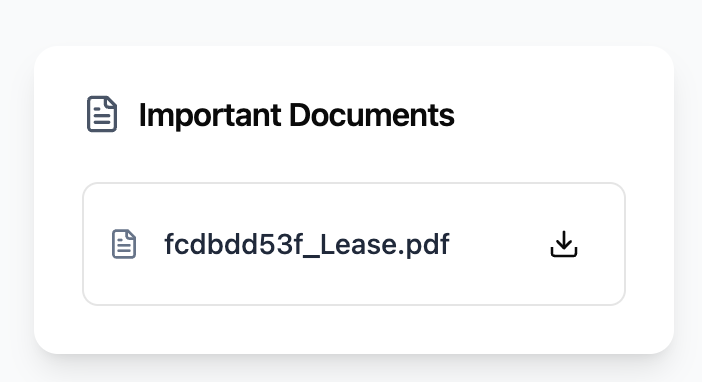
Your lease and shared property documents are stored in "Important Documents."
Tip: If you're on mobile, pinch to zoom.
- Open "Important Documents"
- Tap the download icon next to your lease
- Save a copy to your phone/computer
Submit a maintenance request
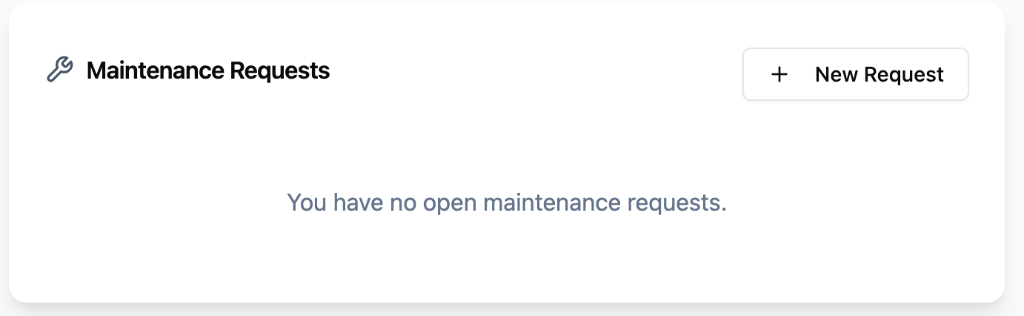
Send maintenance requests directly to management and track updates.
Tip: If you're on mobile, pinch to zoom.
- Go to "Maintenance"
- Tap "New Request"
- Describe the issue and add photos (if supported)
- Submit and track status updates
Need Help?
If you're having trouble accessing your account, submit a support request and we'll get back to you shortly.
Ready to get started?